
Upgrading BCU Software
1.0 Upgrading via PC (Recommended)
Prerequisites
One Ethernet cable
One laptop computer
The BCU upgrade file has been copied to the PC. The file is provided by BMSER
Example

Connect the WAN1 port of the EMU gateway and the computer to the same switch
Example
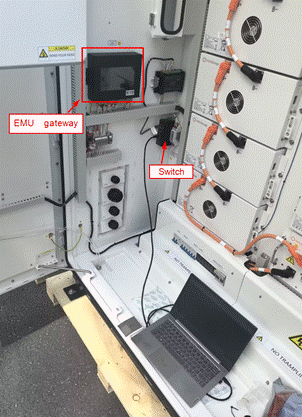
Connect the switch Ethernet ports as shown in the figure below:
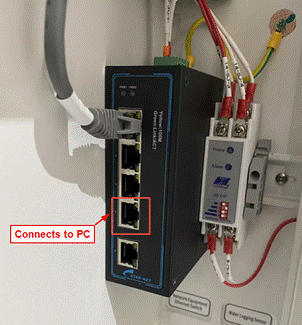
1.1 Upgrading in a DHCP-Enabled Network Environment
Steps
Configure the PC Ethernet adapter to obtain an IP address automatically (DHCP).
Open a web browser on the PC (Google Chrome is recommended) and enter the WAN1 Current IP address of the EMU gateway.
Log in to the web interface. See Logging In to the Screen Interface.
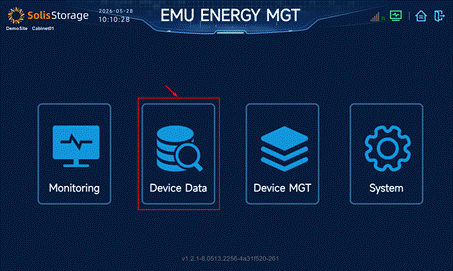
Click Device Data.
Click Battery Cluster ► Equipment Upgrade.
Select BCU from the Device Type drop-down list.
Select BCU ID 1.
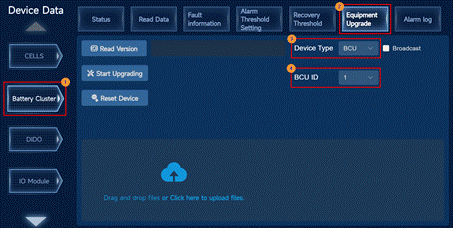
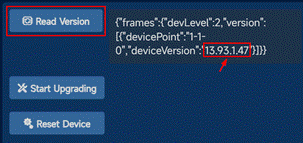
Click Read Version to check the current BCU version.
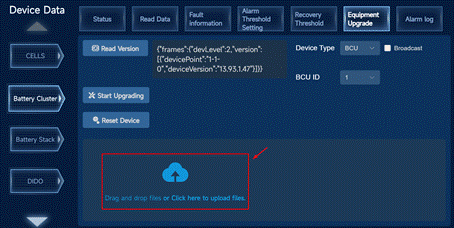
Click or drag the BCU upgrade file to upload it.
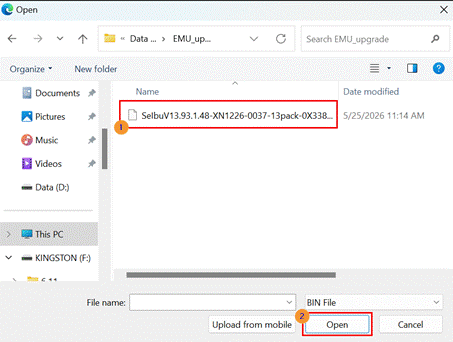
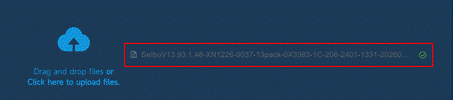
Wait until the upload is complete. A green check mark indicates successful upload.
Click Start Upgrading.
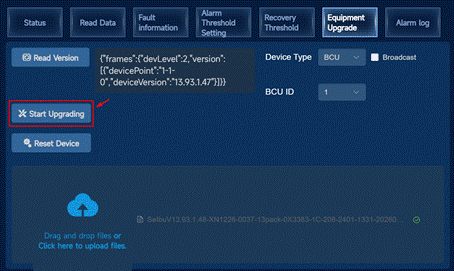
 Caution: Do not leave or refresh the current page during the upgrade. Otherwise, the upgrade may fail or the page may display incorrectly.
The progress bar shows the upgrade status. The process takes approximately 5 minutes.
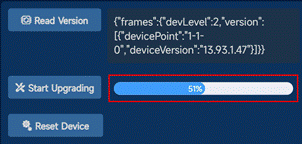
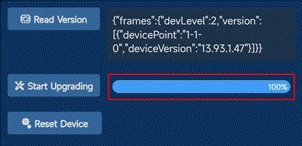
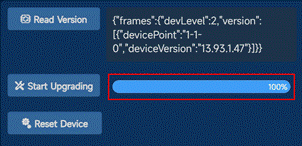
When the progress bar reaches 100% and the backend connection indicator remains stable green, the battery cluster software upgrade is complete.

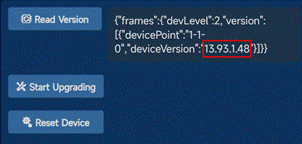
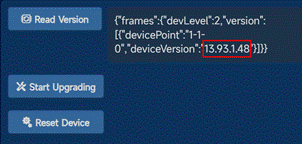
Click Read Version again and check that the version number matches the upgrade file, as shown in the figures below:

Navigate to the Read Data tab and check that the BCU software version matches the upgrade package. As shown in the figure below:
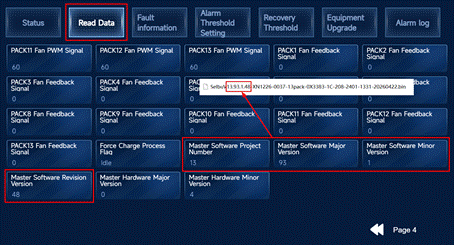
 Note: The data shown in the figures is for reference only. Actual data may vary depending on the site environment.
1.2 Upgrading in a Non-DHCP Network Environment
Steps
Refer to EverCore - Configuring the EMU WAN1 Port to obtain the Current IP, Gateway Address, and Mask Address of the EMU gateway’s WAN1.
Configure the PC Ethernet adapter to manual mode and configure the PC IPv4 parameters as follows:
The PC IP address must be in the same subnet as the WAN1 Current IP.
The PC IPv4 Subnet mask must match the WAN1 Mask Address.
The PC IPv4 Gateway must match the WAN1 Gateway Address.
Preferred DNS server: 8.8.8.8
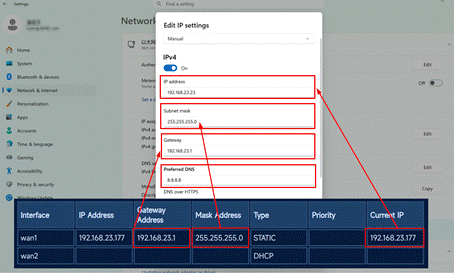
Open a web browser on the PC (Google Chrome is recommended) and enter the WAN1 Current IP address of the EMU gateway.
Log in to the web interface. See EverCore - How to Log in and Manage User Passwords
Click Device Data.
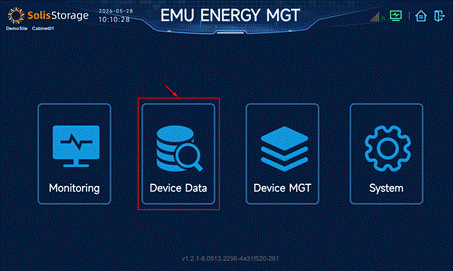
Click Battery Cluster ► Equipment Upgrade.
Select BCU from the Device Type drop-down list.
Select BCU ID 1.
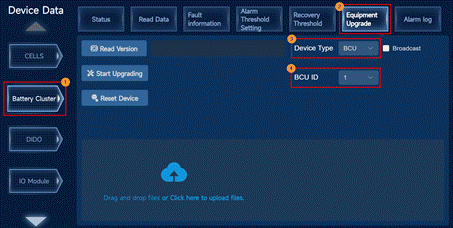
Click Read Version to check the current BCU version.
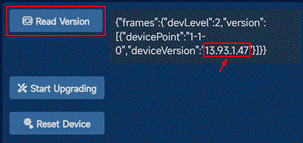
Click or drag the BCU upgrade file to upload it.
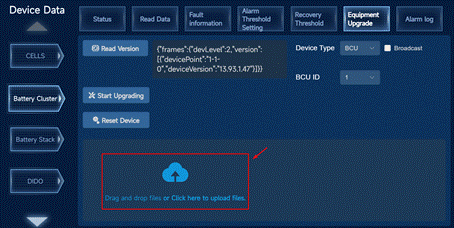
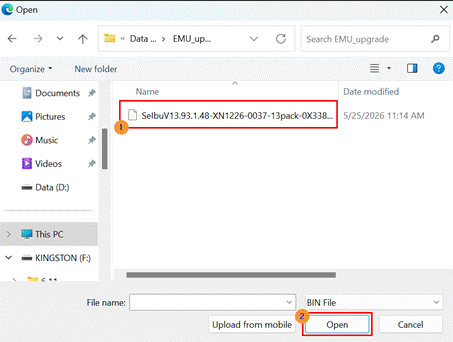
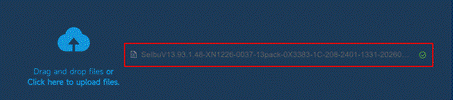
Wait until the upload is complete. A green check mark indicates successful upload.
Click Start Upgrading.
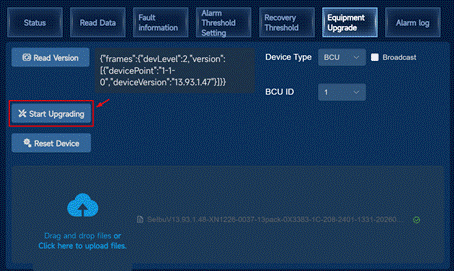
 Caution: Do not leave or refresh the current page during the upgrade. Otherwise, the upgrade may fail or the page may display incorrectly.
The progress bar shows the upgrade status. The process takes approximately 5 minutes.
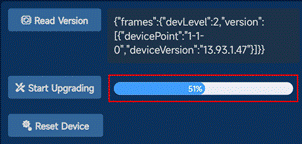
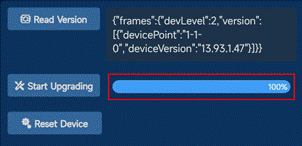
When the progress bar reaches 100% and the backend connection indicator remains stable green, the battery cluster software upgrade is complete.

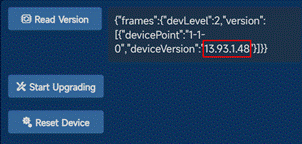
Click Read Version again and check that the version number matches the upgrade file, as shown in the figures below:

Navigate to the Read Data tab and check that the BCU software version matches the upgrade package. As shown in the figure below:
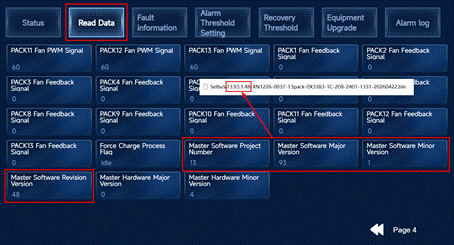
 Note: The data shown in the figures is for reference only. Actual data may vary depending on the site environment.
2.0 Upgrading via USB Drive
Prerequisites
One FAT-formatted USB flash drive, with a length not exceeding 5cm
The battery cluster upgrade file has been copied to the USB drive. The file is provided by BMSER.
Example

Steps
Insert the USB drive into USB port on the EMU gateway.
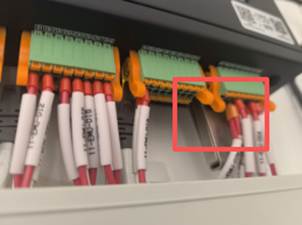
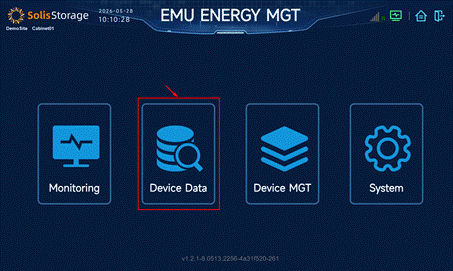
Login to the screen interface. See EverCore - How to Log in and Manage User Passwords
Tap Device Data.
Tap Battery Cluster ► Equipment Upgrade.
Select BCU from the Device Type drop-down list.
Select BCU ID 1.
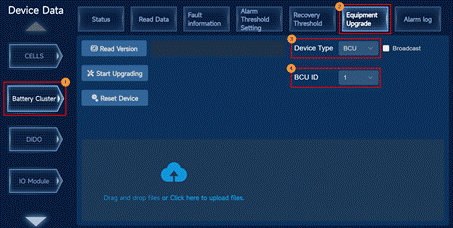
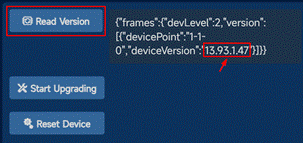
Tap Read Version to check the current BCU version.
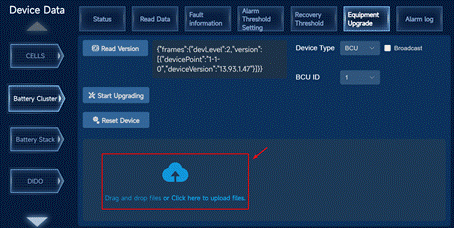
Tap the "File upload" area to open the USB file selecting dialog.
Tap Download of the corresponding upgrade file.
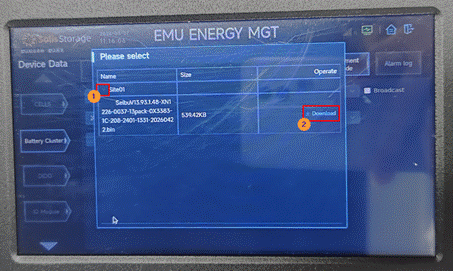
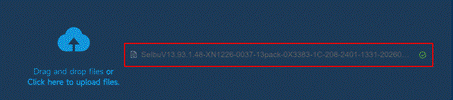
Wait until the download is complete. A green check mark indicates successful download.
Tap Start Upgrading.
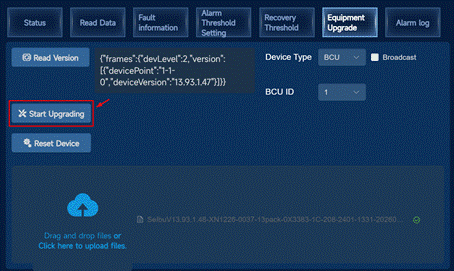
 Caution: Do not leave or refresh the current page during the upgrade. Otherwise, the upgrade may fail or the page may display incorrectly.
The progress bar shows the upgrade status. The process takes approximately 5 minutes.
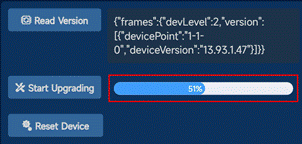
When the progress bar reaches 100% and the backend connection indicator remains stable green, the battery cluster software upgrade is complete.

Tap Read Version again and verify that the upgraded version number matches the version number of the upgrade file, as shown in the figure below:

Tap Read Data, and verify that the BMS software version matches the upgrade package. As shown in the figure below:
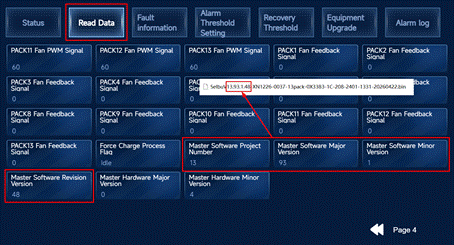
 Note: The data shown in the figures is for reference only. Actual data may vary depending on the site environment.