Share this article:
How to generate and Download a Custom Report in SolisCloud
Overview
SolisCloud allows users to generate customized reports containing plant, datalogger, inverter, statistical, and national standard information. These reports can be useful for system owners, installers, and Distribution Network Operators (DNOs) who require proof of inverter settings and compliance with local grid standards.
This guide explains how to create and download a custom report from your SolisCloud account.
Step-by-Step Guide
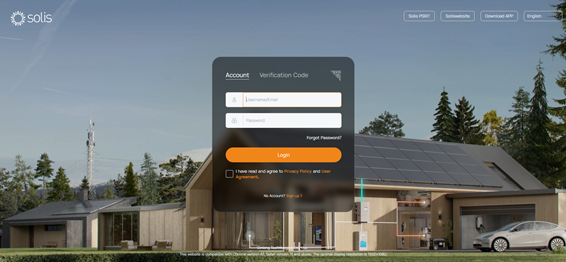
Step 1: Log In to SolisCloud - https://www.soliscloud.com/login
Log in to your SolisCloud account using your username and password.
Step 2: Open the Custom Report Menu
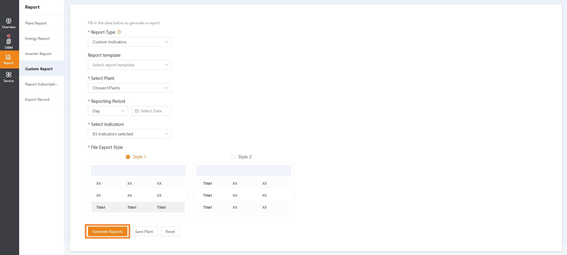
From the menu on the left-hand side of the screen, click "Custom Report".
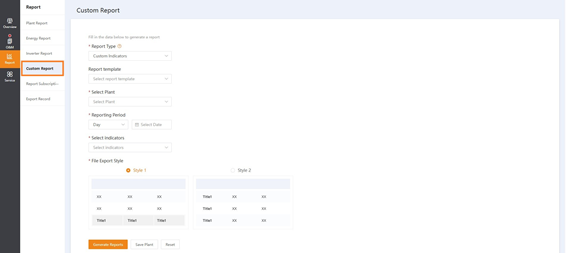
Step 3: Configure the Report
Complete all required fields before generating the report.
3A. Select the Report Type
You can choose between Fixed Indicators and Custom Indicators
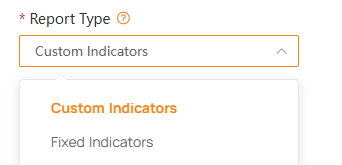
Fixed Indicators
- Yield (kWh)
- Earnings
- Today Full Load Hours (h)
Custom Indicators
- Allows users to customize report contents and export detailed information at the plant level.
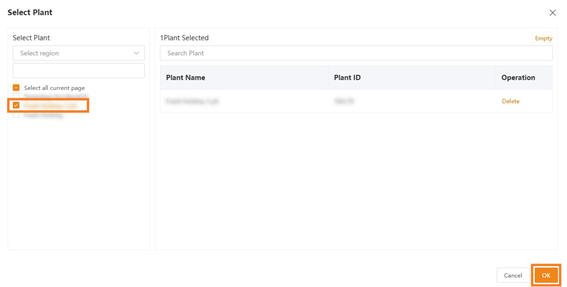
3B. Select the Plant
Choose the plant for which you want to generate the report.
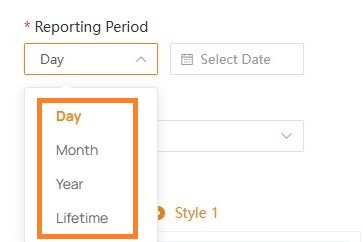
3C. Select the Reporting Period
Choose one of the following reporting periods:
- Day
- Month
- Year
- Lifetime
3D. Select the Required Indicators
Depending on your requirements, you can include the following categories:
Plant Information
Displays information such as:
- Current State
- Plant Address
- Plant Owner
- Assigned Organisation
- And other plant-related details
Datalogger Information
Displays:
- Datalogger Serial Number
- Datalogger Type
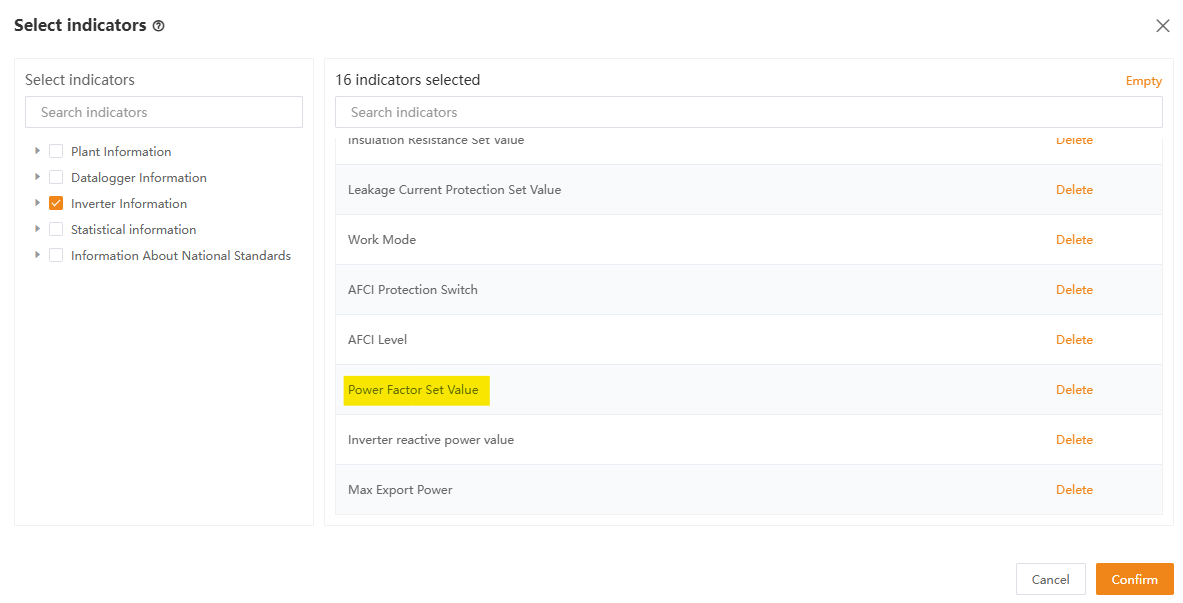
Inverter Information
Displays information such as:
- Inverter Type
- Inverter Name
- Inverter Model
- Battery Model
- Firmware Version
- Current Status
- Power Percentage
- Active Power
- Insulation Resistance Set Value
- And other inverter parameters
- Power Factor Value (Cos Phi) - see screenshot
Statistical Information
Displays data such as:
- Global Irradiance (Meteorograph)
- Scattered Irradiance (Meteorograph)
- Sunlight Hours (Meteorograph)
- Mean Temperature (Meteorograph)
- Yield (kWh)
- Imported Energy (kWh)
- Exported Energy (kWh)
- Battery Charge (kWh)
- Battery Discharge (kWh)
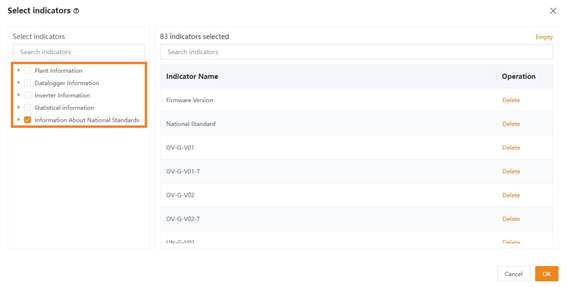
National Standard Information
This section is particularly useful for DNO applications and compliance verification.
The report can include parameters such as:
- Firmware Version
- National Standard
- OV-G-V01
- OV-G-V01-T
- OV-G-V02
- OV-G-V02-T
- UN-G-V01
- UN-G-V01-T
- UN-G-V02
- And other grid protection settings
Note: Many DNOs may request this report as evidence of the inverter's configured grid settings and compliance with local regulations.
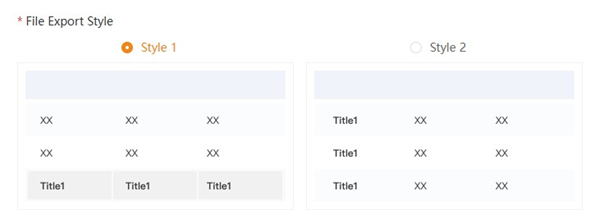
3E. Select the Report Style
Choose your preferred report format.
There are two report styles available.
Step 4: Generate the Report
Once all required options have been selected, click "Generate Report".
Step 5: Enter the Verification Code
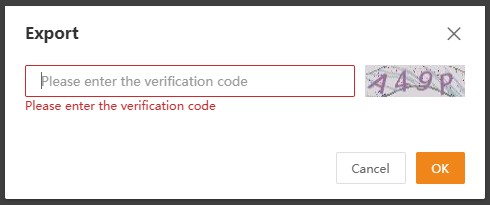
When prompted, enter the verification code to confirm report generation.
Step 6: Download the Report
After successful verification, the report will be generated and made available for download.
Click Download to save the report to your computer.

Conclusion
Custom Reports in SolisCloud provide a simple and efficient way to export plant data, inverter information, statistical data, and national standard settings into a single document.
These reports are especially useful when providing documentation to DNOs, installers, service personnel, or end customers who require confirmation of inverter configuration and compliance settings.
If you require further assistance, please contact the Solis After Sales Service Team.