
How to Log in and Manage User Passwords
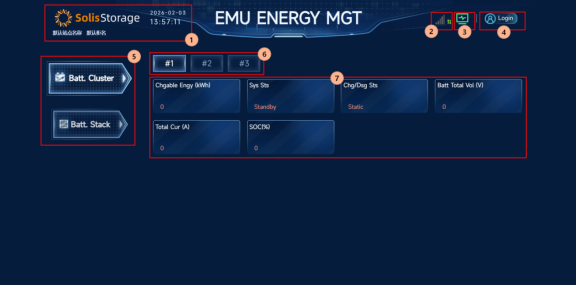
- Select Login from the home screen. (4)
- Choose the user account.
- Enter the password.
- Click Login.
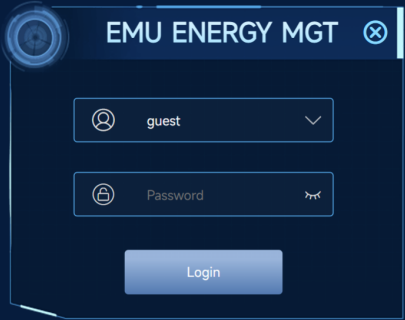
Default Guest Account
Account | Default Password |
Guest | 123456 |
Changing a Password
- Navigate to System > Basic.
- Open the Login User tab.
- Select User Password.
- Enter a new password.
- Save the change.
Important Notes
- The system automatically logs out the current user after a successful password change.
Function Main Interface Description After logging in to the energy management screen control, the main interface of the function will be displayed on the page. The central area of the function main interface is the first-level function module. Click on each function module to enter the corresponding function page.
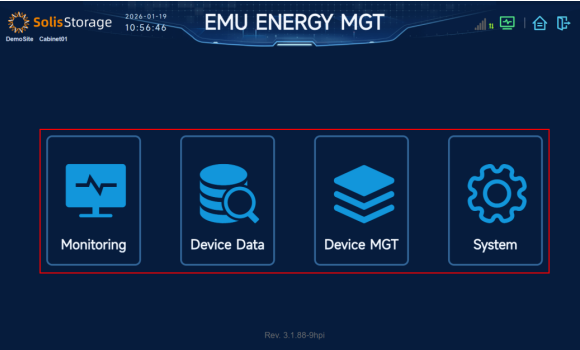
- Monitoring: including current alarm, historical alarm, system utilization rate, network status, etc.
- Device Data: display data modules according to the equipment configured by users, such as batteries, battery clusters, battery stacks, air conditioners and dry contacts.
- Device MGT: including port configuration and equipment configuration.
- System : including basic configuration, parameter configuration etc.
The icon in the upper right corner of the page is shown in the figure below:
- Network status icon: indicates the current network status and signal strength of EMS controller.
- Background connection icon: displays the connection status between the energy management screen control and the EMS controller background.
- Return to function main interface button: Click to return to the function main interface of energy management screen control.
Exit login button: click to exit login and return to the homepage of energy management screen control.